How to Capture Webpage Screenshots with Python
Learn how to programmatically capture webpage screenshots using Python and the Screenshotly API. From basic captures to advanced options like full-page rendering and device emulation.
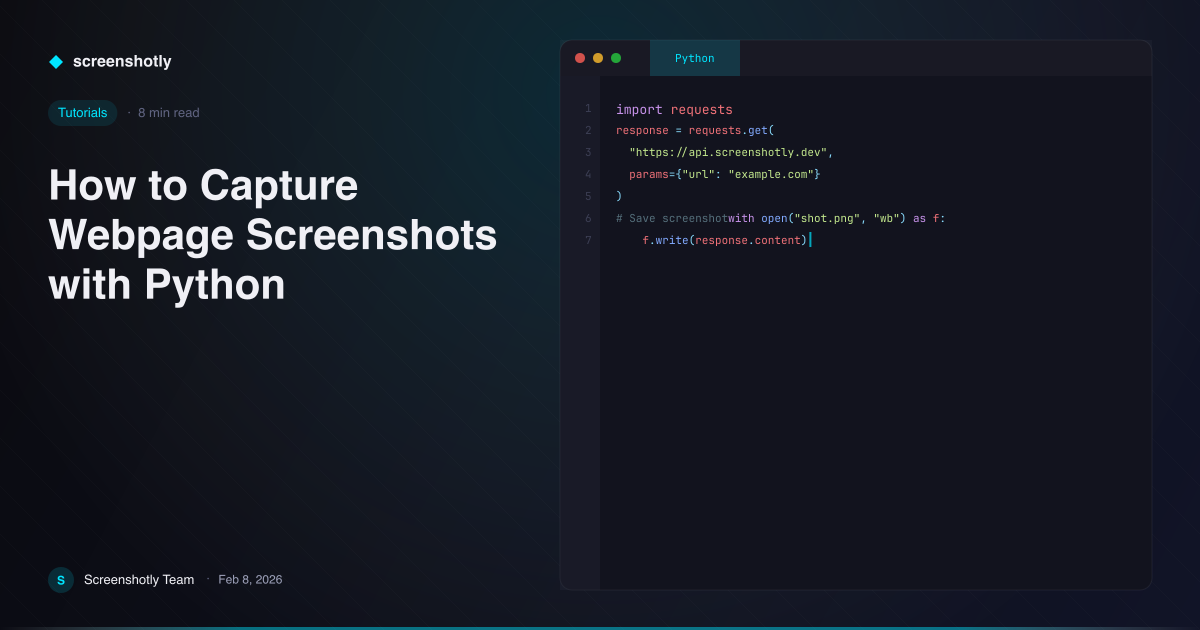
Table of Contents
Python is one of the most widely used languages for automation, data pipelines, and backend services. When you need to capture webpage screenshots programmatically — for monitoring dashboards, generating social previews, archiving pages, or building visual regression tests — pairing Python with a dedicated screenshot API is the fastest path to production-ready results. Instead of wrestling with browser binaries and headless Chrome configurations on your server, you can offload all of the rendering complexity to the Screenshotly API and focus on the logic that matters to your application.
In this tutorial, you will learn how to capture webpage screenshots using Python and the Screenshotly API, starting from a minimal example and building up to a full-featured script with device emulation, error handling, and file output.
Prerequisites
Before you begin, make sure you have the following:
- Python 3.8 or later installed on your machine. You can verify your version by running
python --versionin a terminal. - The requests library. Install it with pip if you have not already:
pip install requests- A Screenshotly API key. If you do not have one yet, create a free account and grab your key from the dashboard. You will use this key to authenticate every request.
Store your API key in an environment variable called SCREENSHOTLY_API_KEY to keep it out of your source code. On macOS or Linux:
export SCREENSHOTLY_API_KEY="your_api_key_here"Basic Screenshot Capture
The simplest way to capture a screenshot is to send a POST request to the Screenshotly capture endpoint with the target URL. The API renders the page in a headless browser and returns the image bytes directly.
import os
import requests

API_URL = "https://api.screenshotly.dev/v1/capture"
API_KEY = os.environ["SCREENSHOTLY_API_KEY"]

response = requests.post(
    API_URL,
    headers={
        "Authorization": f"Bearer {API_KEY}",
        "Content-Type": "application/json",
    },
    json={
        "url": "https://example.com",
    },
)

if response.status_code == 200:
    with open("screenshot.png", "wb") as f:
        f.write(response.content)
    print("Screenshot saved to screenshot.png")
else:
    print(f"Error: {response.status_code} - {response.text}")
That is all it takes for a basic capture. The response body contains the raw image data, so you write it directly to a file.
Configuring Options
The Screenshotly API accepts a number of parameters that give you fine-grained control over the output. The most commonly used options are viewport dimensions, image format, quality, and render delay.
payload = {
    "url": "https://example.com",
    "viewport": {
        "width": 1440,
        "height": 900,
    },
    "format": "webp",
    "quality": 85,
    "delay": 2000,
}

response = requests.post(
    API_URL,
    headers={
        "Authorization": f"Bearer {API_KEY}",
        "Content-Type": "application/json",
    },
    json=payload,
)
Here is what each option does:
- viewport.width / viewport.height — Sets the browser window size in pixels. Defaults to 1280 x 720 if omitted.
- format — Choose between
png,jpeg, orwebp. PNG is lossless and best for crisp text; JPEG and WebP produce smaller files. - quality — An integer from 1 to 100 that controls compression for JPEG and WebP. Ignored for PNG.
- delay — Time in milliseconds to wait after the page loads before taking the screenshot. Useful for pages with animations or lazy-loaded content.
Full-Page Screenshots
By default, the API captures only the visible viewport. If you need the entire scrollable page — for instance, to archive a long-form article or generate a PDF-style preview — set the fullPage option to true.
payload = {
    "url": "https://example.com/blog/long-article",
    "fullPage": True,
    "format": "png",
}

response = requests.post(
    API_URL,
    headers={
        "Authorization": f"Bearer {API_KEY}",
        "Content-Type": "application/json",
    },
    json=payload,
)
Keep in mind that full-page screenshots of very long pages will produce larger images and may take a bit longer to render. Adjust the delay parameter if the bottom of the page has content that loads asynchronously.
Device Emulation
Testing how a webpage looks on mobile devices is a common requirement. The Screenshotly API supports device emulation parameters that let you simulate phones and tablets without needing physical hardware.
payload = {
    "url": "https://example.com",
    "viewport": {
        "width": 390,
        "height": 844,
    },
    "isMobile": True,
    "deviceScaleFactor": 3,
    "userAgent": "Mozilla/5.0 (iPhone; CPU iPhone OS 17_0 like Mac OS X) AppleWebKit/605.1.15 (KHTML, like Gecko) Version/17.0 Mobile/15E148 Safari/604.1",
}- isMobile — Tells the browser to use mobile rendering behavior, including touch event support and meta viewport handling.
- deviceScaleFactor — Sets the device pixel ratio. A value of 2 or 3 simulates a Retina display and produces a higher-resolution image.
- userAgent — Overrides the browser’s user agent string. Some websites serve different markup to mobile user agents, so setting this ensures you see the mobile version of the page.
Saving to File
You have already seen inline file saving in the basic example, but for production scripts it is good practice to build a helper function that handles naming and directory creation.
import os
from datetime import datetime


def save_screenshot(response, directory="screenshots", prefix="capture"):
    os.makedirs(directory, exist_ok=True)

    content_type = response.headers.get("Content-Type", "image/png")
    extension = content_type.split("/")[-1]

    timestamp = datetime.now().strftime("%Y%m%d_%H%M%S")
    filename = f"{prefix}_{timestamp}.{extension}"
    filepath = os.path.join(directory, filename)

    with open(filepath, "wb") as f:
        f.write(response.content)

    print(f"Saved: {filepath} ({len(response.content)} bytes)")
    return filepath
This function reads the content type from the response headers to determine the file extension, timestamps the filename to avoid collisions, and creates the output directory if it does not already exist.
Error Handling
Production code should handle errors gracefully. The Screenshotly API uses standard HTTP status codes: 400 for bad requests, 401 for authentication failures, 429 for rate limit violations, and 500 for server errors.
def capture_screenshot(url, options=None):
    payload = {"url": url}
    if options:
        payload.update(options)

    try:
        response = requests.post(
            API_URL,
            headers={
                "Authorization": f"Bearer {API_KEY}",
                "Content-Type": "application/json",
            },
            json=payload,
            timeout=30,
        )

        if response.status_code == 200:
            return response

        if response.status_code == 429:
            retry_after = int(response.headers.get("Retry-After", 5))
            print(f"Rate limited. Retry after {retry_after} seconds.")
            return None

        print(f"API error {response.status_code}: {response.text}")
        return None

    except requests.exceptions.Timeout:
        print("Request timed out. The target page may be too slow to render.")
        return None
    except requests.exceptions.RequestException as e:
        print(f"Request failed: {e}")
        return None
Setting a timeout on the request prevents your script from hanging indefinitely. When you hit a 429 rate limit, the Retry-After header tells you how many seconds to wait before sending another request. In a batch processing pipeline, you could use time.sleep() to pause and retry automatically.
Complete Script
Here is a full working example that ties everything together. It captures a desktop screenshot, a mobile screenshot, and a full-page screenshot of the same URL, saving each to disk.
import os
import time
from datetime import datetime
import requests

API_URL = "https://api.screenshotly.dev/v1/capture"
API_KEY = os.environ["SCREENSHOTLY_API_KEY"]


def capture_screenshot(url, options=None, timeout=30):
    payload = {"url": url}
    if options:
        payload.update(options)

    try:
        response = requests.post(
            API_URL,
            headers={
                "Authorization": f"Bearer {API_KEY}",
                "Content-Type": "application/json",
            },
            json=payload,
            timeout=timeout,
        )

        if response.status_code == 200:
            return response

        if response.status_code == 429:
            retry_after = int(response.headers.get("Retry-After", 5))
            print(f"Rate limited. Retrying in {retry_after}s...")
            time.sleep(retry_after)
            return capture_screenshot(url, options, timeout)

        print(f"API error {response.status_code}: {response.text}")
        return None

    except requests.exceptions.RequestException as e:
        print(f"Request failed: {e}")
        return None


def save_screenshot(response, directory="screenshots", prefix="capture"):
    os.makedirs(directory, exist_ok=True)
    content_type = response.headers.get("Content-Type", "image/png")
    extension = content_type.split("/")[-1]
    timestamp = datetime.now().strftime("%Y%m%d_%H%M%S")
    filepath = os.path.join(directory, f"{prefix}_{timestamp}.{extension}")

    with open(filepath, "wb") as f:
        f.write(response.content)

    print(f"Saved: {filepath} ({len(response.content)} bytes)")
    return filepath


if __name__ == "__main__":
    target_url = "https://example.com"

    # Desktop screenshot
    desktop = capture_screenshot(target_url, {
        "viewport": {"width": 1440, "height": 900},
        "format": "webp",
        "quality": 90,
        "delay": 1000,
    })
    if desktop:
        save_screenshot(desktop, prefix="desktop")

    # Mobile screenshot with device emulation
    mobile = capture_screenshot(target_url, {
        "viewport": {"width": 390, "height": 844},
        "isMobile": True,
        "deviceScaleFactor": 3,
        "userAgent": "Mozilla/5.0 (iPhone; CPU iPhone OS 17_0 like Mac OS X) "
                     "AppleWebKit/605.1.15 (KHTML, like Gecko) Version/17.0 "
                     "Mobile/15E148 Safari/604.1",
        "format": "webp",
        "quality": 90,
    })
    if mobile:
        save_screenshot(mobile, prefix="mobile")

    # Full-page screenshot
    full_page = capture_screenshot(target_url, {
        "fullPage": True,
        "format": "png",
    })
    if full_page:
        save_screenshot(full_page, prefix="fullpage")

    print("All captures complete.")
Run the script with:
python capture.pyYou should see three images appear in a screenshots directory, one for each capture mode.
Next Steps
This tutorial covered the core workflow for capturing webpage screenshots with Python and the Screenshotly API. From here, you can integrate screenshot capture into CI/CD pipelines for visual regression testing, build batch processing scripts that capture hundreds of URLs from a CSV, or generate dynamic Open Graph images for your blog posts.
For the full list of API parameters, response formats, webhook support, and advanced features like CSS injection and element-level clipping, visit the Screenshotly documentation. If you have not created an account yet, sign up here to get your API key and start capturing screenshots in minutes.
Written by
Screenshotly Team
The team behind Screenshotly, building the screenshot API developers love.
Continue Reading
Try Screenshotly Free
100 screenshots per month, no credit card required. Start capturing pixel-perfect screenshots in minutes.
Get Started Free